

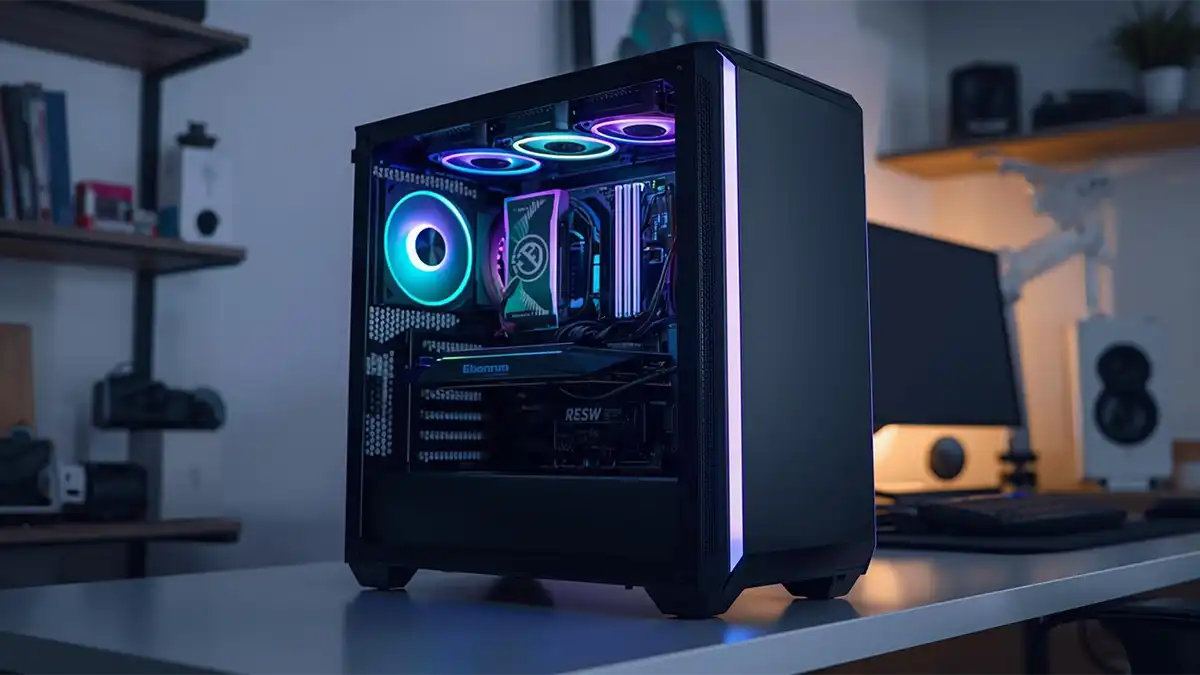

If your PC is starting to slow down — sluggish multitasking, long load times, or choppy graphics in games or creative apps — you don’t always need a brand-new system. Upgrading a few key components — RAM, SSD, and GPU — can dramatically boost performance without breaking the bank. In 2025, the technology and pricing of upgrades make this more effective than ever.
This guide will walk you through what to upgrade and why, and how to upgrade safely and smartly. Whether you’re a gamer, a creative professional, or someone who just wants a snappier daily computer experience, this will help.
Step 1: Identify What Your PC Needs
Before buying anything, diagnose what’s slowing you down.
- If the PC struggles when many applications or browser tabs are open → RAM is probably insufficient.
- If boot times, load times, or app launches are slow → storage (HDD or old SSD) might be the bottleneck.
- If games or video editing are laggy or stuttering → GPU (graphics card) is likely the weak point.
If you want more certainty, use Task Manager (on Windows) or system-monitoring tools: high memory usage → RAM; heavy disk activity on HDD → storage; maxed GPU usage during graphics tasks → GPU.
Once you know what’s causing slowdown, you can upgrade selectively instead of spending money on unnecessary parts.
Upgrade 1: RAM — Boost Multitasking and Responsiveness
Why RAM matters
RAM (Random Access Memory) is your PC’s short-term working space — it holds the data active programs use. More RAM allows smoother multitasking, faster application switching, and better performance when working with large files or many browser tabs.
How much RAM is recommended (2025)
- 8 GB — bare minimum for light tasks (web browsing, email, basic apps)
- 16 GB — good baseline for modern Windows, everyday use, and moderate multitasking
- 32 GB — ideal if you do video editing, heavy multitasking, or run memory-hungry apps
- 64 GB+ — mostly for advanced workloads (large video projects, virtualization, heavy creative work)
If your PC struggles when switching between many applications, or slows when you open many tabs, a RAM upgrade is often the easiest performance boost.
Upgrade 2: SSD — Make Storage Fast Again
Why switching to SSD matters
If your PC still runs on a traditional mechanical hard drive (HDD), switching to an SSD can feel like you got a brand-new computer overnight. SSDs offer dramatically faster read/write speeds, faster boot times, quicker application loading, and generally make the OS feel more responsive.
NVMe vs. SATA SSDs — what to choose
- SATA SSDs — easy drop-in, good value, much faster than HDD, ideal for older systems or budget upgrades.
- NVMe SSDs (PCIe / M.2) — significantly faster than SATA; use PCIe lanes to deliver high throughput and low latency. Great for gaming, heavy workloads, or anyone who values speed.
Many sources in 2025 point out that NVMe SSD upgrades often deliver the biggest per dollar improvement in everyday performance.
Recommended storage capacity
A good baseline is at least 500 GB for Windows and core apps. For better long-term use, 1 TB or more gives breathing room for games, media, and large files. Use the old HDD (if present) as a secondary storage drive for documents and backups.
Upgrade 3: GPU — Power Up Gaming, Editing & Visual Workloads
When a GPU upgrade matters
If your PC handles everyday tasks fine but games stutter, graphics lag, or video editing/gpu-accelerated apps are choppy — the GPU (graphics card) is likely the bottleneck. Upgrading it can drastically improve frame rates, rendering times, and overall performance.
What to look for in a good GPU (2025)
Modern GPUs vary depending on your needs and budget:
- For 1080p gaming or everyday creative apps — a solid mid-range card is usually enough.
- For 1440p gaming, high-res editing, or future-proof performance — choose a higher-end GPU with more VRAM.
- For 4K, heavy rendering, or content creation — go for high-end cards with enough VRAM and power.
In 2025, current-generation GPUs offer significantly better performance-per-dollar compared to budget or outdated cards — yet require attention to power supply, case clearance, and cooling.
Compatibility Checklist — Do This Before You Buy
Before purchasing upgrades, ensure:
- Motherboard supports the RAM type (e.g. DDR4 or DDR5) and has free RAM slots.
- Motherboard supports NVMe SSDs (M.2 slot + PCIe lanes) if you plan that upgrade.
- Power Supply (PSU) has enough wattage and proper PCIe power connectors for new GPU.
- Case size & cooling are adequate — modern GPUs are larger and hotter; ensure clearance and airflow.
- Backup your data if you’re changing your boot drive (especially when switching from HDD to SSD).
Quick Installation Overview
Upgrading RAM
- Shut down PC, unplug it, and ground yourself (static protection).
- Open PC case, locate RAM slots.
- Release clips, insert new RAM sticks firmly until they click.
- Boot up — OS should detect new RAM automatically.
Installing SSD
- SATA SSD: mount in 2.5″ bay, connect SATA data + power cables.
- M.2 NVMe: insert into M.2 slot, secure with screw.
- Format/initialize drive in OS. If using as main drive, consider reinstalling OS or cloning old drive.
Replacing / Installing GPU
- Remove old GPU (if present), unscrew bracket, release PCIe latch.
- Insert new GPU into PCIe x16 slot until it locks.
- Screw the bracket, connect PSU PCIe power cables.
- Boot, install latest drivers — connect monitor to GPU, not motherboard video.
Which Upgrade Should You Do First?
If your PC suffers from multiple issues, here’s a general priority:
- Switch to SSD — fastest, most noticeable improvement for nearly any system.
- Upgrade RAM if multitasking or heavy workloads are common.
- Upgrade GPU if games, video editing, or graphics-heavy workloads demand it.
Final Thoughts: Upgrade Smart, Save Money, Extend PC Lifespan
Upgrading RAM, SSD, and GPU remains one of the most cost-effective ways to revitalize an aging PC. Instead of buying a new system, a well-planned upgrade can deliver performance close to modern standards — for much less money. Whether you’re editing video, gaming, programming, or working on heavy office loads, these upgrades make your PC faster, smoother, and far more capable.
Before buying anything, check compatibility carefully. After that, update drivers and enjoy a more responsive, powerful PC — often indistinguishable from a new build, but far cheaper.
Upgrading smart is future-proofing your productivity.
